
Config Lab: L2 EtherChannel 2
Both layer 2 EtherChannel and layer 3 EtherChannel use the same set of commands to create the channel. You have the option to use static configuration or one of two dynamic protocols to negotiate the formation of a trunk (LACP or PAgP). Today’s lab provides a little exercise on all three options (static, PAgP, LACP) in the context of L2 EtherChannels, but it helps you prepare for both L2 and L3 EtherChannel configuration.
The Lab Exercise
Requirements
This lab uses a small LAN, all acting as layer 2 switches. Several pairs of switches connect with a pair of links that operate as 802.1Q trunks. Your job: make each pair of links operate as a layer 2 EtherChannel.
As a bit of a twist, the initial configuration for this lab pre-configures some details. Your job is to determine the correct configuration that should be added to the initial configuration. By starting out with some configuration, you not only have to think about a nice orderly configuration, but also the impacts of the existing configuration on the final EtherChannel configuration.
The specific rules for this lab are:
- Configure the three EtherChannels shown in the figure as follows:
- Dist1 – Dist2: manually configured.
- Dist1 – Access 1: Use LACP, with Dist1 initiating the negotiations and Access1 not initiating the negotiations.
- Dist2 – Access 2: Use PAgP, with Dist2 initiating the negotiations and Access2 not initiating the negotiations.
- All physical links between switches already use 802.1Q trunking per the initial configurations.
- Ensure that the Port Channels act as trunks:
- Use 802.1Q trunking instead of ISL.
- Configure all switches to dynamically negotiate trunking, and all switches to initiate that negotiation.
Figure 1: Distribution/Access Switch Topology
Initial Configuration
Examples 1, 2, 3, and 4 show the beginning configuration state of Dist1, Dist2, Access1, and Access2.
hostname Dist1
!
vlan 2,3,4
!
interface GigabitEthernet1/0/1
 switchport trunk encapsulation dot1q
 switchport mode dynamic desirable
 channel-group 10 mode on
!
interface GigabitEthernet1/0/2
 switchport access vlan 2
 switchport trunk encapsulation dot1q
 switchport mode dynamic desirable
 channel-group 10 mode on
!
interface GigabitEthernet1/0/3
 switchport trunk encapsulation dot1q
 switchport mode dynamic desirable
 channel-group 20 mode active
!
interface GigabitEthernet1/0/4
 switchport trunk encapsulation dot1q
 switchport mode dynamic desirable
 channel-group 20 mode active
Example 1: Dist1 Config
hostname Dist2
!
vlan 2,3,4
!
interface GigabitEthernet1/0/1
 switchport trunk encapsulation dot1q
 switchport mode dynamic desirable
 channel-group 10 mode on
!
interface GigabitEthernet1/0/2
 switchport trunk encapsulation dot1q
 switchport mode dynamic desirable
 switchport access vlan 2
 channel-group 10 mode on
!
interface GigabitEthernet1/0/3
 switchport trunk encapsulation dot1q
 switchport mode dynamic desirable
 channel-group 20 mode auto
!
interface GigabitEthernet1/0/4
 switchport trunk encapsulation dot1q
 switchport mode dynamic desirable
 switchport access vlan 2
 channel-group 20 mode auto
Example 2: Dist2 Config
hostname Access1
!
vlan 2,3,4
!
interface GigabitEthernet1/0/1
 switchport trunk encapsulation dot1q
 switchport mode dynamic desirable
 channel-group 20 mode desirable
!
interface GigabitEthernet1/0/2
 switchport trunk encapsulation dot1q
 switchport mode dynamic desirable
 channel-group 20 mode desirable
Example 3: Access1 Config
hostname Access2
!
vlan 2,3,4
!
interface GigabitEthernet1/0/1
 switchport trunk encapsulation dot1q
 switchport mode dynamic desirable
 channel-group 20 mode auto
!
interface GigabitEthernet1/0/2
 switchport trunk encapsulation dot1q
 switchport mode dynamic desirable
 switchport access vlan 2
 channel-group 20 mode auto
Example 4: Access2 Config
Answer Options - Click Tabs to Reveal
You can learn a lot and strengthen real learning of the topics by creating the configuration – even without a router or switch CLI. In fact, these labs were originally built to be used solely as a paper exercise!
To answer, just think about the lab. Refer to your primary learning material for CCNA, your notes, and create the configuration on paper or in a text editor. Then check your answer versus the answer post, which is linked at the bottom of the lab, just above the comments section.
You can also implement the lab using the Cisco Packet Tracer network simulator. With this option, you use Cisco’s free Packet Tracer simulator. You open a file that begins with the initial configuration already loaded. Then you implement your configuration and test to determine if it met the requirements of the lab.
(Use this link for more information about Cisco Packet Tracer.)
Use this workflow to do the labs in Cisco Packet Tracer:
- Download the .pkt file linked below.
- Open the .pkt file, creating a working lab with the same topology and interfaces as the lab exercise.
- Add your planned configuration to the lab.
- Test the configuration using some of the suggestions below.
You can also implement the lab using Cisco Modeling Labs – Personal (CML-P). CML-P (or simply CML) replaced Cisco Virtual Internet Routing Lab (VIRL) software in 2020, in effect serving as VIRL Version 2.
If you prefer to use CML, use a similar workflow as you would use if using Cisco Packet Tracer, as follows:
- Download the CML file (filetype .yaml) linked below.
- Import the lab’s CML file into CML and then start the lab.
- Compare the lab topology and interface IDs to this lab, as they may differ (more detail below).
- Add your planned configuration to the lab.
- Test the configuration using some of the suggestions below.
Note: As of when this post was published, CML did not support LACP to negotiate a trunk. The LACP configuration shown in the answers post is correct, but if you test in CML, you will not see a working EtherChannel between Dist1 and Access1.
Note: IOS tends to copy interface configuration over to the automatically-creates port-channel interface, and for good reason. However, that feature means that in your lab, or when using CML, you may see a slightly different initial configuration based on the timing of when the configuration is added to the switches. So, if you do this lab in CML or any other environment, focus more on the final configuration rather than the interim state or the initial configuration state.
Network Device Info:
This table lists the interfaces listed in the lab exercise documentation versus those used in the sample CML file.
| Device | Lab Port | CML Port |
| Dist1 | G1/0/1 | G0/1 |
| Dist1 | G1/0/2 | G0/2 |
| Dist1 | G1/0/3 | G0/3 |
| Dist1 | G1/0/4 | G1/0 |
| Dist2 | G1/0/1 | G0/1 |
| Dist2 | G1/0/2 | G0/2 |
| Dist2 | G1/0/3 | G0/3 |
| Dist2 | G1/0/4 | G1/0 |
| Access1 | G1/0/1 | G0/1 |
| Access1 | G1/0/2 | G0/2 |
| Access2 | G1/0/1 | G0/1 |
| Access2 | G1/0/2 | G0/2 |
Lab Answers Below: Spoiler Alert
Lab Answers: Configuration (Click Tab to Reveal)
Answers
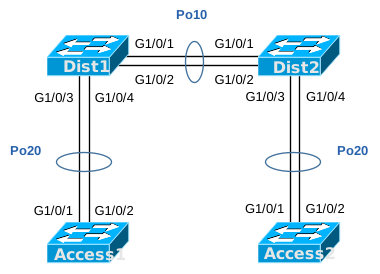
Figure 1: Distribution/Access Switch Topology
interface GigabitEthernet1/0/2
 no switchport access vlan 2
!
interface port-channel 10
 switchport trunk encapsulation dot1q
 switchport mode dynamic desirable
!
interface port-channel 20
 switchport trunk encapsulation dot1q
 switchport mode dynamic desirable
Example 1: Dist1 Config
interface GigabitEthernet1/0/2
 no switchport access vlan 2
!
interface GigabitEthernet1/0/3
 shutdown
 channel-group 20 mode desirable
 no shutdown
!
interface GigabitEthernet1/0/4
 shutdown
 channel-group 20 mode desirable
 no shutdown
!
interface port-channel 10
 switchport trunk encapsulation dot1q
 switchport mode dynamic desirable
!
interface port-channel 20
 switchport trunk encapsulation dot1q
 switchport mode dynamic desirable
Example 2: Dist2 Config
interface range GigabitEthernet1/0/1-2
 shutdown
 no channel-group 20 mode desirable
 channel-group 20 mode passive
 no shutdown
!
interface port-channel 20
 switchport trunk encapsulation dot1q
 switchport mode dynamic desirable
Example 3: Access1 Config
interface port-channel 20
 switchport trunk encapsulation dot1q
 switchport mode dynamic desirable
Example 4: Access2 Config
Commentary, Issues, and Verification Tips (Click Tabs to Reveal)
Commentary
This lab focused on layer 2 EtherChannel. There are three main ways to configure EtherChannel: Statically configuring it using the on keyword, dynamically configuring it to use LACP, and dynamically configuring it to use PAgP. Both LACP and PAgP have similar goals but are not interoperable with each other. Interestingly, Cisco prefers customers to use one of the dynamic protocols because the protocols perform compatibility checks of several parameters that must match for links to be added to a channel.
This lab calls for three different EtherChannel links, all of which had at least one compatibility issue based on the pre-existing configuration. To complete this lab, you need to configure the three EtherChannels per the lab specifications while also changing the configuration to overcome the compatibility issues.
Also, as an aside, you would likely not see so many combinations of configuration settings in the same LAN. Instead, you would create a configuration and use that convention repeatedly for all EtherChannels. This lab asks for a variety of configurations to help you exercise your configuration skills.
One huge key to interpreting the initial configuration is that the channel-group number interface subcommand causes IOS to create a port-channel interface by that same number. For instance, on switch Dist1, once the first channel-group 10 command was configured, interface portchannel 10 existed, with all default settings.
PortChannel 10 – Dist1 to Dist2
First, focus on Etherchannel 10 between switches Dist1 and Dist2. As initially configured, it has two problems:
- The two physical links have different access VLAN settings, which prevents both physical links from being active in the EtherChannel at the same time. One physical link uses a default setting of access VLAN 1, while the other is configured with access VLAN 2 (switchport access vlan 2).
- Per the sequence of events in this lab, the lab does not show the port-channel interface in the initial configuration. Once the switch creates the port-channel interface, it has all default settings. As a result, it may or may not be correctly configured for trunking at this point, so trunking needs to be configured on the port-channel interface.
On the first point above, EtherChannels have a list of configuration settings that must agree before new links can be added to an EtherChannel. One of the settings that must agree is the access VLAN setting – even if the channel will be trunking. To solve this problem, make the physical links use the same access VLAN setting. In this case, we set both links to use the default setting of access VLAN 1 with the command no switchport access vlan 2 on one physical port (or you could have used switchport access vlan 1).
Once completed, both links in port-channel 10 should be added and active in the channel. Then, to make the port-channel act as a trunk, you should add the switchport mode dynamic desirable command to match the particulars of the lab instructions. This tells the switch to initiate the dynamic choice to use 802.1Q trunking. (Additionally, on some older switches, including the simulated switches in Cisco Packet Tracer, the switches need to be told to use 802.1Q instead of ISL using the switchport trunk encapsulation dot1q command.)
PortChannel 20 – Dist1 to Access1
Next, focus on the link between Dist1 and Access1. Per the initial configuration, Dist1 uses LACP because of its channel-group 20 mode active command, and Access1 uses PAgP per the channel-group 20 mode auto command. (The “auto” option happens to be one of the PAgP options, and the “active” option is one of the LACP options.) Because LACP and PAgP are not compatible with each other, this EtherChannel channel will never form. The lab requirements state that this link should use LACP, with Dist1 being the initiating device. To meet the lab requirements, change the configuration on switch Access1 to use LACP passively; to configure this, use the channel-group 20 mode passive command on both links on Access1.
The other requirement for this EtherChannel is to use 802.1Q trunking, so the same configuration required for port-channel 10 between Dist1 and Dist2 is required here as well. To match the lab requirements, on both Dist1 and Access1, add the switchport mode dynamic desirable command and optionally the switchport trunk encapsulation dot1q command.
Finally, note that Packet Tracer gets confused if you leave the interfaces up while configuring the subcommands in the configuration solution. To improve your chances of success, follow the convention in the answer config uses a shutdown command to disable the ports, followed by the relevant subcommands, and ends with a no shutdown to enable the ports again.
PortChannel 20 – Dist2 to Access2
For this last combination, note that we chose the duplicate number of port-channel number 20 on purpose to duplicate the same port-channel number used between Dist1 and Access1. The port-channel number just has to be unique on a switch. In a real-life design, the designer would likely use a unique number to make operational tasks more obvious.
For this last EtherChannel, per the initial configuration, both Dist2 and Access2 are configured to use PAgP per the channel-group 20 mode auto command. (The “auto” option one of the PAgP options.) However, the auto parameter causes the switch to wait for the other switch to initiate the channel negotiations, so with both sides using auto, no channel will form. The requirements state that this link should use PAgP, with Dist2 being the initiating device. To correct this configuration, modify the Dist2 configuration with the channel-group 20 mode desirable command on both physical links.
The other requirement for this EtherChannel is to use 802.1Q trunking, so the same configuration required for the other two port channels is required here as well. To match the lab requirements, on both Dist2 and Access2, add the switchport mode dynamic desirable command and optionally the switchport trunk encapsulation dot1q command.
Known Issues in this Lab
This section of each Config Lab Answers post hopes to help with those issues by listing any known issues with Packet Tracer related to this lab. In this case, the issues are:
| # | Summary | Detail |
| 1 | Packet Tracer trunking may require the switchport trunk encapsulation command | Packet Tracer LAN switches operate like older Cisco switch generations in that they support both ISL and 802.1Q trunking. The initial configurations for this lab show the switchport trunk encapsulation dot1q command, which if needed on a PT switch, is the correct command to define the type of trunking to use. Depending on the PT version and switch model you use, you may not need the command. |
| 2 | Use the shutdown and no shutdown commands on interfaces before changing the configurations of those interfaces | Packet Tracer can struggle with dynamic changes to the operation of the devices based on new configuration. Particularly for this lab, it helps if you disable interfaces before changing EtherChannel configuration settings on an interface. |
| 2 | To change to another channel-group setting (auto, desirable, etc), first remove the existing command with no channel-group … | This is not specific to Packet Tracer, but to make sure you see it… for example if an interface has channel-group 20 mode auto configured, issue a no channel-group 20 mode auto command to remove it before configuring another setting. |
Why Would Cisco Packet Tracer Have Issues?
(Note: The below text is the same in every Config Lab.)
Cisco Packet Tracer (CPT) simulates Cisco routers and switches. However, CPT does not run the same software that runs in real Cisco routers and switches. Instead, developers wrote CPT to predict the output a real router or switch would display given the same topology and configuration – but without performing all the same tasks, an actual device has to do. On a positive note, CPT requires far less CPU and RAM than a lab full of devices so that you can run CPT on your computer as an app. In addition, simulators like CPT help you learn about the Cisco router/switch user interface – the Command Line Interface (CLI) – without having to own real devices.
CPT can have issues compared to real devices because CPT does not run the same software as Cisco devices. CPT does not support all commands or parameters of a command. CPT may supply output from a command that differs in some ways from what an actual device would give. Those differences can be a problem for anyone learning networking technology because you may not have experience with that technology on real gear – so you may not notice the differences. So this section lists differences and issues that we have seen when using CPT to do this lab.
Beyond comparing your answers to this lab’s Answers post, you can test in Cisco Packet Tracer (CPT) or Cisco Modeling Labs (CML). In fact, you can and should explore the lab once configured. For this lab, once you have completed the configuration, try these verification steps.
- Use the show etherchannel summary command to verify that each of the EtherChannels is up and operational.